 appNextG
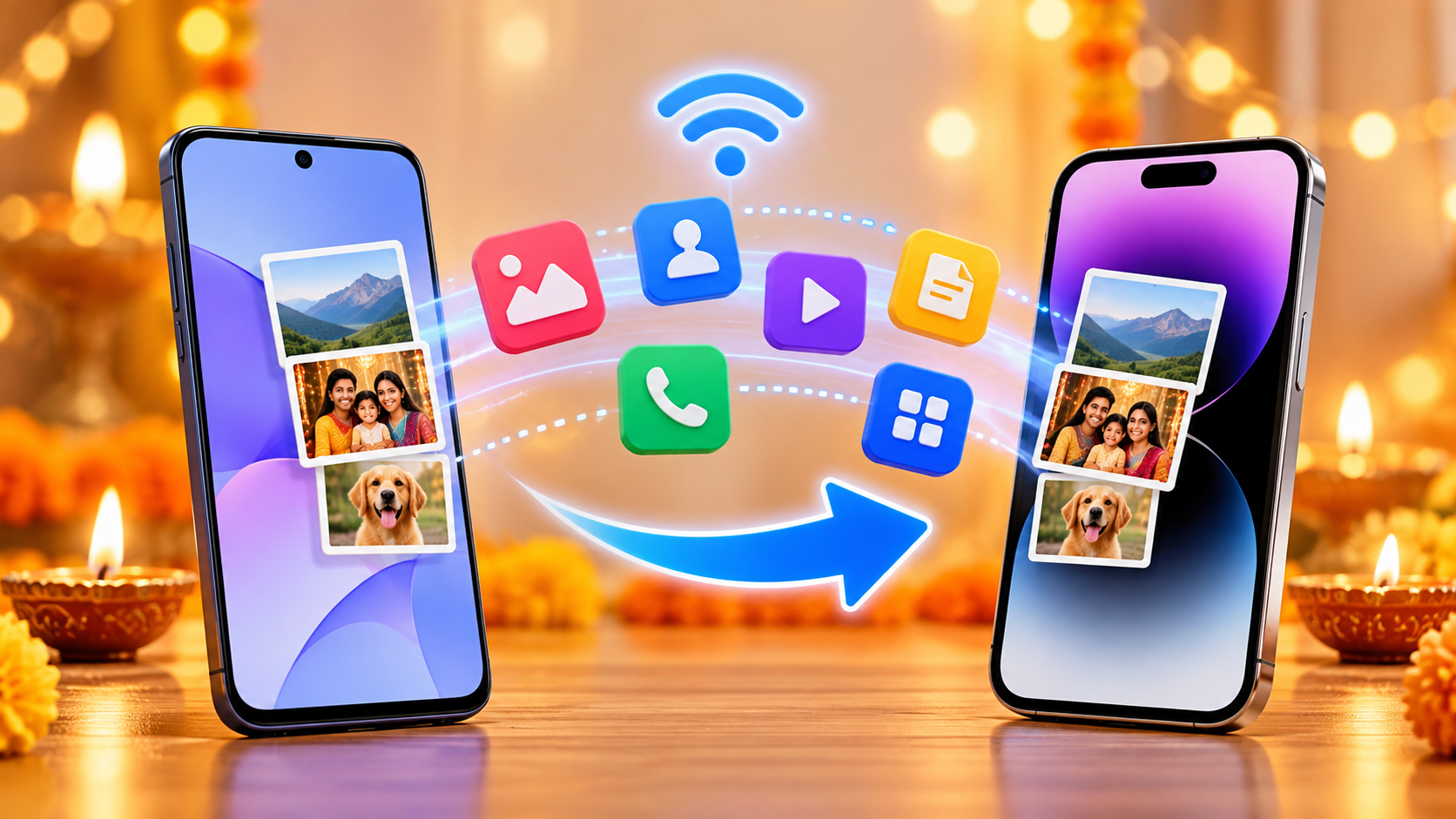
Bought a New Phone This Diwali? How to Transfer Data From One Phone to Another
Diwali is often a time for new beginnings. New clothes, festive shopping, gifts, home makeovers, and for many people, a brand-new smartphone.
Buying a new phone is exciting, especially when you have been waiting for festive offers or planning an upgrade for months. But once you finish unboxing the device, another important task appears:
How do you move everything from your old phone to your new phone?
Your previous device may contain years of photos, family videos, contacts, documents, downloads, music, apps and other important files. Moving all of this manually can turn an exciting upgrade into a time-consuming process.
Fortunately, you no longer have to send every photo individually or copy your files one folder at a time. There are several convenient ways to transfer data from one phone to another, including wireless phone-to-phone transfer, QR pairing and other device migration methods.
Whether you are switching from Android to Android, Android to iPhone, iPhone to Android, or simply want to transfer files from your phone to a laptop, this guide will help you understand the process.
Why Data Transfer Matters When You Buy a New Phone
A new smartphone gives you a fresh device, but your digital life still remains on the old one.
Think about everything stored on your phone:
Family photos
Travel memories
Videos
Contacts
Work documents
PDFs
Downloads
Music
Apps
APK files
Screenshots
Personal folders
Important files
For many people, the phone itself is replaceable, but the content inside it is not.
That is why transferring your important data should be one of the first things you do when setting up a new device.
A proper phone-to-phone data transfer allows you to move your essential content without starting everything from scratch.
What Is Phone Clone?
You may come across terms such as:
Phone Clone
Transfer My Data
Copy My Data
Smart Switch
Phone Switch
Mobile Transfer
Data Transfer
These terms generally describe the process of moving supported data from one device to another.
A phone clone app can help transfer content such as:
Photos
Videos
Contacts
Documents
Music
Apps or APK files where supported
Other compatible files
It is important to understand that phone cloning does not always mean creating an exact copy of every system setting or every application's internal data.
Some applications store information in their own accounts or cloud services. Operating systems may also restrict certain types of data transfer.
The main purpose of a phone clone or mobile transfer tool is to simplify the movement of supported content when you change devices.
How to Transfer Data From One Phone to Another
The exact steps depend on your devices and transfer method, but the general process is straightforward.
Step 1: Keep Both Phones Ready
Place your old and new phones close to each other.
Before starting the transfer:
Charge both phones.
Make sure the new phone has enough free storage.
Keep Wi-Fi available if your chosen method requires it.
Avoid starting a large transfer with a nearly empty battery.
If you have several gigabytes of photos and videos, the process may take longer than transferring contacts or a few documents.
Step 2: Choose the Sender and Receiver
Your old phone usually acts as the sender because it contains the existing files.
Your new phone acts as the receiver.
This makes the process easy to understand:
Old Phone → Sender
New Phone → Receiver
Step 3: Connect the Two Devices
Depending on the transfer method, phones can be connected using:
Wi-Fi
Personal hotspot
QR code
Device pairing
Cable connection
Wireless transfer is useful because you do not always need a computer or cable.
QR pairing can also simplify the process. One device shows a QR code while the other scans it to establish the required connection.
Step 4: Select the Data You Want
You do not have to copy everything from your old phone.
A new phone can also be an opportunity to organise your files.
Select only the content you want, such as:
Photos – family memories, festive pictures and personal images.
Videos – camera recordings, family videos and saved clips.
Contacts – phone numbers and contact information.
Documents – PDFs, office files and downloaded documents.
Music – audio files and personal collections.
Apps/APKs – compatible app files where supported.
Step 5: Start the Transfer
Once your phones are connected and the required data is selected, start the transfer.
Keep both devices nearby.
Avoid:
Switching off either phone
Disconnecting Wi-Fi
Closing the transfer process
Moving the devices too far apart
The transfer time will depend on:
Total amount of data
Size of individual files
Connection quality
Device performance
Available storage
Step 6: Verify Everything
Do not immediately reset your old phone after the transfer.
Open your new phone and check:
Gallery
Contacts
Videos
Documents
Downloads
Music
Apps
Make sure your most important content is actually available.
The safest sequence is:
Transfer → Verify → Reset
Transfer Data From Old Phone to New Phone
This is one of the most common situations after buying a new smartphone.
Whether your old phone is two years old or five years old, it may contain a large amount of personal information.
Before transferring everything, consider creating a priority list.
Transfer the irreplaceable content first:
Contacts
Personal photos
Videos
Important documents
Work files
Music
Downloads
Apps or APK files
Once these are safely available on your new device, you can move less important content if needed.
Android to Android Data Transfer
Moving from one Android phone to another is a common upgrade scenario.
You may be:
Buying a newer version of the same brand
Moving from one Android manufacturer to another
Upgrading to a better camera
Switching to a phone with more storage
Replacing an older device
Android-to-Android transfer may include:
Photos
Videos
Contacts
Documents
Music
Compatible apps
APK files
A direct phone-to-phone transfer is useful because you can move multiple categories of content in one process instead of sending files separately.
The basic workflow remains:
Connect → Select → Transfer → Verify
Android to iOS Data Transfer
Some users buy an iPhone after using Android for years.
This means they need to transfer important data between two different operating systems.
An Android to iOS data transfer may include supported content such as:
Photos
Videos
Contacts
Documents
Other compatible files
Because Android and iOS work differently, not everything can always move in exactly the same way.
For example, an Android APK file cannot simply work as an iPhone application.
Similarly, certain applications may require you to:
Install them again from the App Store
Sign in to your account
Restore cloud-based information
Use an application's own migration system
For this reason, focus on transferring your personal files and supported content first.
iPhone to Android Data Transfer
Users also move from iPhone to Android.
Maybe you want more customisation, a different camera experience or simply purchased an Android device during a festive sale.
You may want to move:
Photos
Videos
Contacts
Documents
Other compatible media
The same rule applies when switching platforms:
Do not erase your iPhone until you have verified that your important files are available on your Android device.
How to Transfer Photos From One Phone to Another
Photos are often the most valuable files stored on a smartphone.
Your gallery might contain memories from:
Diwali celebrations
Weddings
Birthdays
Family gatherings
Trips
Festivals
Vacations
Everyday life
Moving thousands of images manually can take a lot of time.
A phone-to-phone transfer method allows you to select your required photos and move them to the new device together.
This is usually more convenient than sending images individually through email or messaging apps.
It can also help you preserve the original files rather than relying on methods that may compress the images.
Transfer Videos to a New Phone
Video files are usually larger than photos.
Modern phones can record high-resolution footage that consumes significant storage space.
Before transferring videos, check:
Free storage on the new phone
Size of the video collection
Battery level
Connection stability
If your old phone contains 40 GB of videos but your new device only has 20 GB of available space, you will need to choose which videos matter most.
This is also a good opportunity to remove:
Duplicate videos
Accidental recordings
Old downloads
Unnecessary screen recordings
Transfer Contacts From One Phone to Another
Contacts can easily be overlooked during a phone switch.
Your phonebook may contain numbers collected over many years:
Friends
Family
Colleagues
Clients
Vendors
Doctors
Service providers
Emergency contacts
There are different ways to transfer contacts, including account syncing and mobile migration tools.
Whichever method you use, check your new device afterward.
Search for a few important names and verify that their phone numbers are available.
How to Transfer Data From Phone to Laptop
Not every file needs to go directly to your new phone.
Sometimes transferring data from a phone to a laptop is a better option.
A laptop can be useful for:
Creating a backup
Storing old photos
Organising documents
Saving large videos
Freeing phone storage
Accessing work files
There are several common methods.
Method 1: USB Cable
A USB cable is one of the most straightforward methods for transferring files from an Android phone to a laptop.
Connect the device to your computer and select the appropriate file-transfer mode when prompted.
You can then open compatible folders and copy:
Photos
Videos
Documents
Downloads
Music
USB transfer can be particularly useful for large folders.
Method 2: Cloud Storage
Another option is uploading files from your phone to cloud storage.
You can then sign in from the laptop and access those files.
Cloud storage is convenient when you do not have a cable, although large uploads can require significant internet bandwidth and storage capacity.
Method 3: Wireless Sharing
Some phones, computers and services support wireless file sharing.
This can be convenient when transferring a few photos or documents.
Availability depends on the devices and software you use.
Method 4: Email
Email works well when you only need to send one or two small files.
For example:
A PDF
A document
A single image
It becomes inconvenient for large photo or video libraries.
Phone-to-Phone Transfer vs Phone-to-Laptop Transfer
Both methods serve different purposes.
Choose Phone-to-Phone Transfer When:
You bought a new smartphone.
You want your files directly on your new device.
You are switching Android phones.
You are changing between Android and iOS.
You want your photos and contacts immediately available.
Choose Phone-to-Laptop Transfer When:
You need a backup.
You want to archive old media.
Your new phone has limited storage.
You need to organise files first.
You want to use files on your computer.
You can also combine both approaches.
Move your most important daily content to the new phone and save older photos or videos on your laptop.
Wireless Transfer vs Cable Transfer
Both options can be useful depending on the situation.
Wireless Data Transfer
Wireless methods may use:
Wi-Fi
Hotspot
QR pairing
Advantages include:
No physical cable required
Convenient phone-to-phone sharing
Easy setup
Useful when travelling
Cable Transfer
Cable transfer can be helpful when:
Moving files to a computer
Transferring large folders
Internet access is unavailable
You prefer a direct physical connection
The best option depends on your devices and your transfer requirements.
Why QR Code Pairing Can Make Transfer Easier
When several devices are nearby, manually identifying the correct phone can sometimes be confusing.
QR pairing simplifies this process.
A typical workflow looks like this:
One device displays a QR code.
The second device scans it.
The phones establish the supported connection.
You select the content.
The transfer begins.
This gives users a simple visual way to connect the correct devices.
What Is Transfer My Data: Phone Clone?
Transfer My Data: Phone Clone is designed for users who want to move supported files between phones.
Its features include phone-to-phone transfer and cross-platform data sharing for compatible devices.
Depending on your devices and file types, you can use it for transferring:
Photos
Move selected photos and important memories to another supported phone.
Videos
Transfer compatible video files directly between devices.
Contacts
Move supported contacts when changing phones.
Documents
Transfer PDFs and other compatible files.
Apps and APK Files
Supported applications or APK files may be transferred where device compatibility and operating-system permissions allow.
Wi-Fi and Hotspot Transfer
Connect supported devices wirelessly.
QR Code Pairing
Use QR scanning to simplify device connection.
Android and iOS Transfers
The app supports compatible file sharing between Android and iOS devices.
Transfer History
Users can review previous transfers from one place.
Things to Do Before Starting a Data Transfer
A few simple steps can make your transfer smoother.
Charge Your Phones
Avoid transferring large files when either device has very low battery.
Check Available Storage
Look at the free storage on your new phone before moving large photo or video libraries.
Clean Your Old Phone
Do not move unnecessary clutter simply because it is there.
Delete:
Duplicate screenshots
Unwanted downloads
Blurry photos
Temporary videos
Old files you no longer need
Keep Important Files Backed Up
For extremely important photos or documents, consider maintaining an additional backup.
Keep the Devices Nearby
Wireless transfer generally works best when both phones remain close.
Common Mistakes to Avoid When Changing Phones
Resetting the Old Device Too Early
This is one of the biggest mistakes.
Always verify the transferred content first.
Assuming Everything Will Transfer Automatically
Different operating systems, apps and services handle data differently.
Some content may require separate login or restoration.
Forgetting Contacts
Check whether important contacts are stored locally on the device or synced with an account.
Ignoring Storage Space
Do not attempt to transfer more data than the new phone can store.
Copying Years of Unnecessary Files
A new phone is a good opportunity to start clean.
Make Your Diwali Phone Upgrade a Digital Fresh Start
Diwali is traditionally associated with cleaning, organisation and new beginnings.
You can apply the same idea to your digital life.
Instead of copying every file from your previous phone, ask yourself:
Do I still need this?
Keep:
Important family photos
Personal videos
Contacts
Work documents
Useful files
Important apps
Leave behind:
Duplicate photos
Old screenshots
Unnecessary downloads
Temporary files
Apps you no longer use
Your new smartphone will feel cleaner and more organised from day one.
Final Thoughts
A new smartphone should be exciting, not stressful.
Your old phone may hold years of memories and important files, but moving them does not have to mean manually sending everything one by one.
Depending on your devices, you can use phone-to-phone transfer, Wi-Fi, QR pairing, USB, cloud storage or other compatible methods.
If you are changing smartphones, start with the content that matters most:
Photos. Contacts. Videos. Documents.
Transfer it carefully.
Check your new device.
Keep your old phone untouched until everything important has been verified.
Then you can reset, exchange or store your previous phone with confidence.
So if a new smartphone is part of your Diwali celebration this year, enjoy the upgrade—and take your most important memories with you.
Upgrade the phone, not the hassle.
Frequently asked questions
How do I transfer data from one phone to another?
You can use a compatible phone-transfer method to connect both devices, select your supported data and move it to the new phone. Depending on your devices, options may include Wi-Fi, hotspot, QR pairing or cable transfer.
How can I transfer data from my old phone to my new phone?
Keep both devices ready, choose the old phone as the sender and new phone as the receiver, connect them using your selected transfer method, choose your files and start the transfer.
Can I transfer data wirelessly from one phone to another?
Yes. Compatible transfer tools can use methods such as Wi-Fi, personal hotspot or QR-based pairing to move supported files between phones.
Can I transfer data from Android to iPhone?
Supported photos, videos, contacts, documents and other compatible files can be transferred between Android and iOS using an appropriate cross-platform method. Some app data and system settings may require separate migration.
Can I transfer data from iPhone to Android?
Yes, compatible files such as photos, videos, contacts and documents can be moved using supported cross-platform transfer methods.
How do I transfer photos from one phone to another?
Connect both phones using a compatible transfer method, select the photos you want and begin the transfer. Check your gallery on the receiving phone after completion.
How can I transfer contacts to my new phone?
Contacts can be transferred using account syncing, manufacturer migration tools or compatible phone-transfer applications.
Can I transfer videos to my new phone?
Yes. Check that the new phone has enough available storage, select your required videos and transfer them using a compatible phone-to-phone method.
Can I transfer apps from my old phone to my new phone?
Some transfer methods support apps or APK files. However, compatibility depends on the operating system, individual app and device permissions. Some applications may need to be installed again.
How do I transfer files from my phone to a laptop?
You can use a USB cable, cloud storage or a supported wireless sharing method. USB is particularly useful for transferring large collections of photos and videos.
Do I need internet to transfer files between phones?
Not always. Some transfer methods can use a local Wi-Fi or hotspot connection instead of uploading your files to the internet. Requirements depend on the transfer method being used.
What should I transfer first when changing phones?
Start with data that would be difficult or impossible to replace, including contacts, personal photos, videos and important documents.
Should I reset my old phone after transferring data?
Only after you have checked the new phone and confirmed that all important data has transferred successfully.
Is phone clone the same as copying everything from my phone?
Not necessarily. Phone clone generally means transferring supported content between devices. Private app data, account information and certain operating-system settings may need separate migration methods.
What is the easiest way to move large files between two phones?
A direct wireless phone-to-phone transfer can be convenient because supported large files can move directly between devices without manually uploading and downloading each one.